

Sergey Shkundaleu @archit3ct@social.ssbx.dev
- WebSite
- https://sergey.iontec.co/
- GitHub
- https://github.com/sergshk
Admin
Experienced technology entrepreneur on the quest for ethics and privacy. Follow #punkprivacy tag to get regular privacy tips. You can also follow @ethiork account to get information about progress of Ethiork project that enables people to own their data and protect their privacy.
Joined Nov 2020
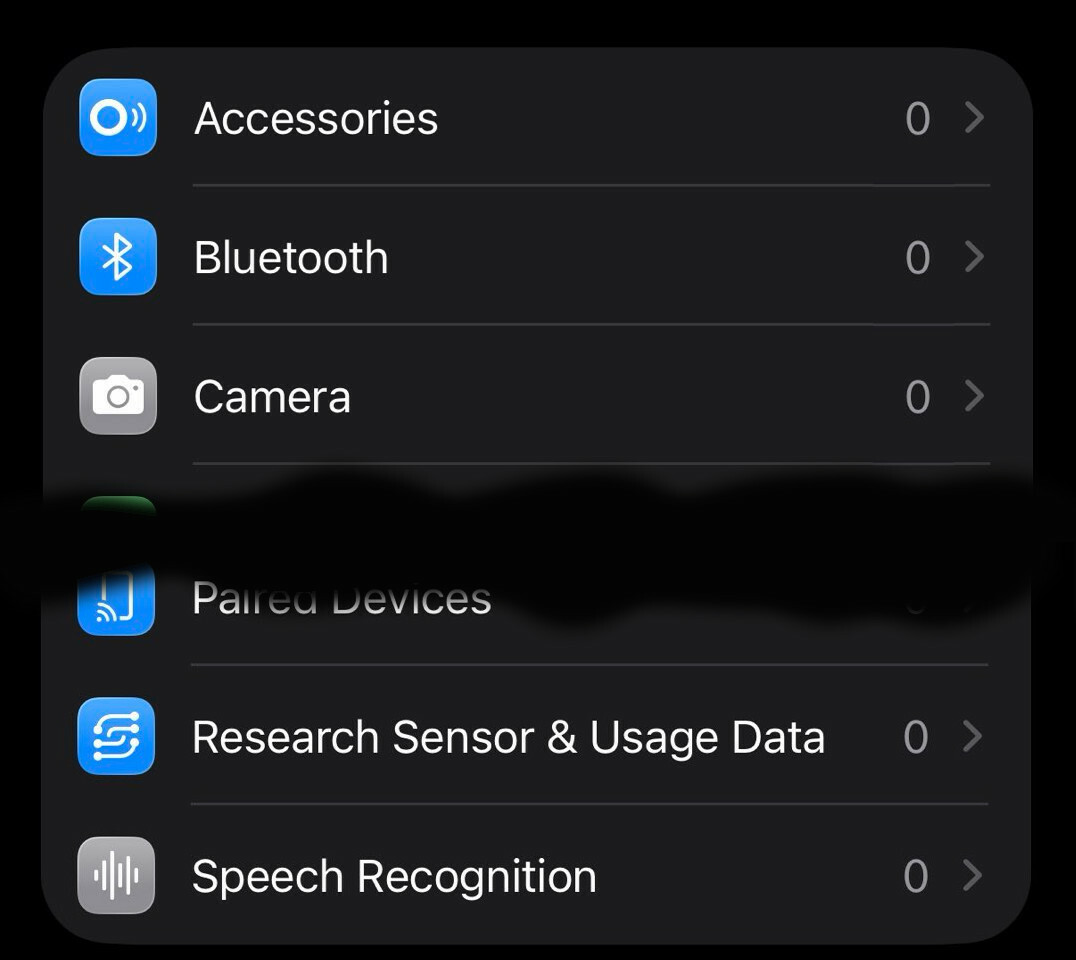
Let's talk about privacy of various capabilities linked to physical sensors on your iPhone. There is a special section in settings where you can decide which apps get access to those capabilities. Go to Settings-> Privacy & Security, then scroll past "Wallet" option. You'll see Accessories, Bluetooth, Camera, etc. Go inside each option and ensure that only apps that you expect have access to each particular capability(number represent how many apps). #iphoneprivacy #punkprivacy
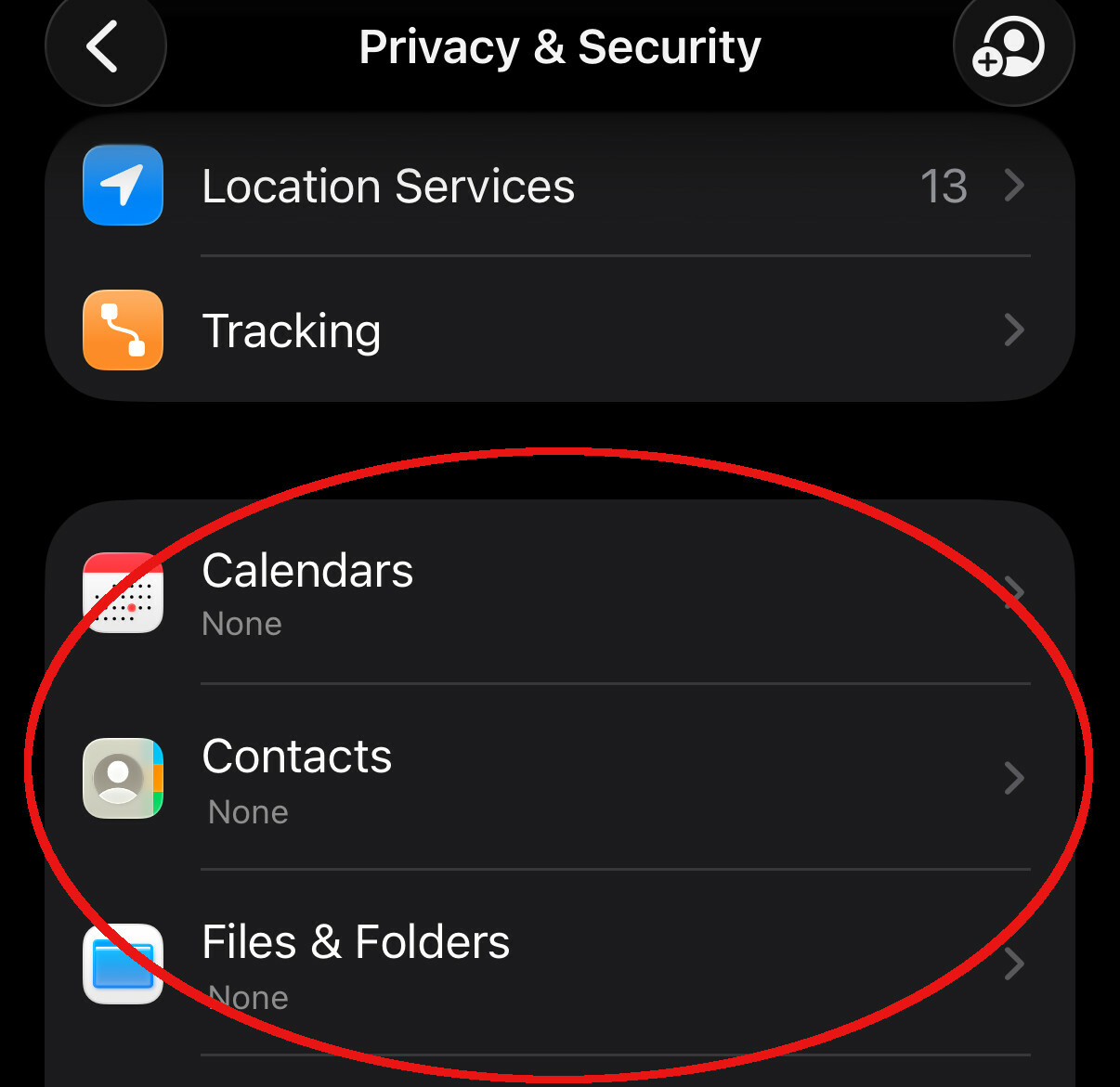
Let's talk about privacy in section that responsible for standard smartphone capabilities, like Calendar, Contacts, Photos, etc. List is much longer. Go to Settings-> Privacy & Security, then scroll past "Tracking" and in next section go into each capability and grant access based on your needs. There are 3 options, None, Limit access(you select items) or Full Access. Avoid giving full access, limit as much as possible. #iphoneprivacy #punkprivacy
Just in time before icemagedon package from BlackHills arrived with this compact guide. Time to review what's inside with a cup of hot beverage.
One feature I really miss on LinkedIn is the ability to set an expiration date for posts.
As a user, I don’t want to see event announcements or conference invites weeks after they’ve already happened. The date has passed, the opportunity is gone—and yet the post is still in my feed. What’s the point?
Time-sensitive content should disappear or be archived automatically. It would make everyone’s feed more relevant and much less cluttered.
Sergey Shkundaleu
boosted

Going to #FOSDEM and interested in #Phosh? @devrtz will give a talk on Saturday 16:30 in the FOSS on Mobile devroom (UB4.132) and there'll be devices running Phosh in UD1 at the #linuxonmobile and @postmarketOS booths.
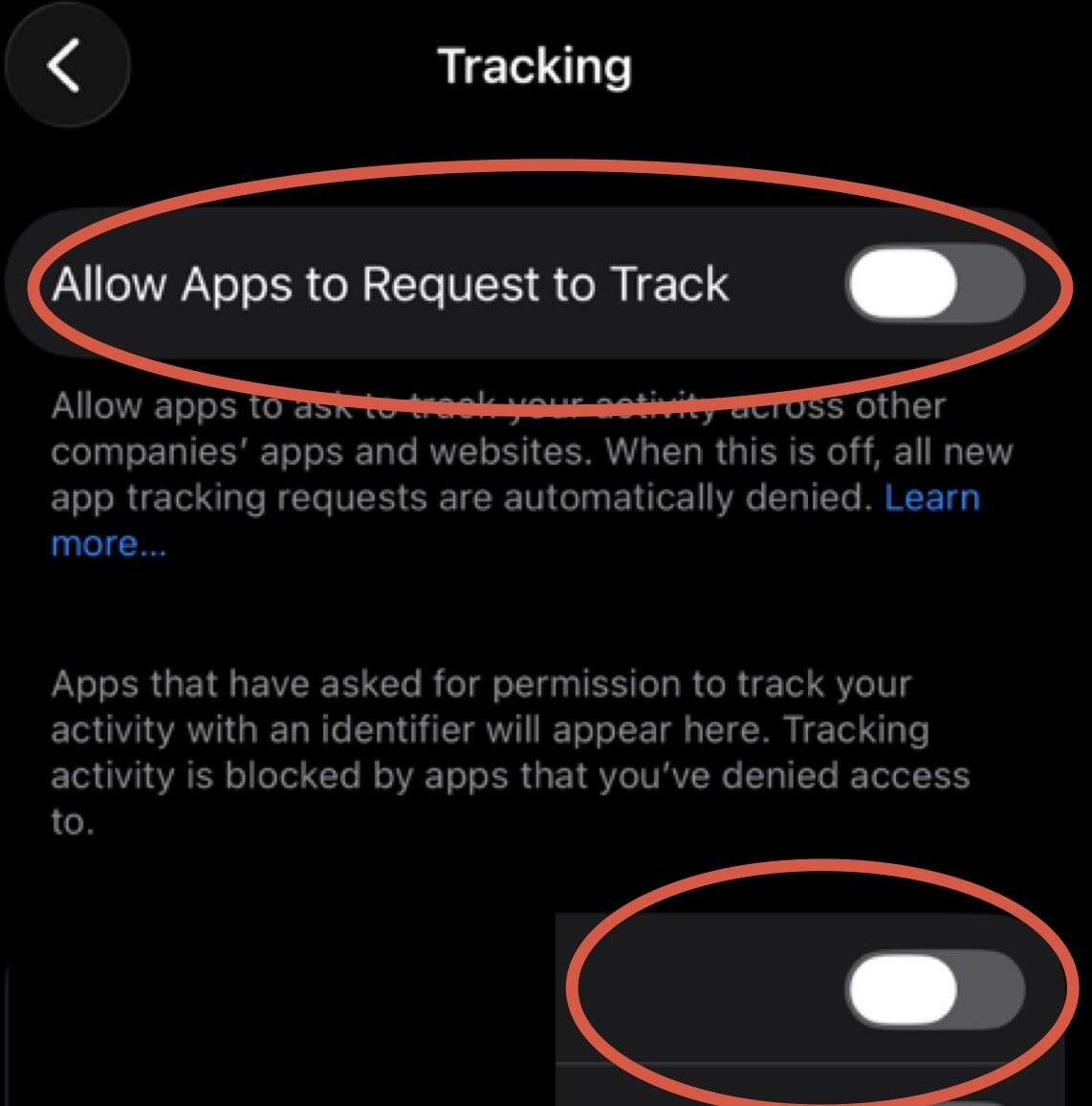
Today's story is about tracking across devices and apps. iPhone has a setting that allows apps to request to track you across multiple channels and unfortunately it's ON by default. Time to turn it off. Go to Settings-> Privacy & Security-> Tracking and turn off top toggle that says Allow Apps to Request to Track, also go through all the apps on the list there and make sure it's off for all of them. #iphoneprivacy #punkprivacy
@osxreverser who said it’s going to be better, for profit companies focus only on profit. It’ll be cheaper and faster, and we had to cope with less user friendly and less secure.
Sergey Shkundaleu
boosted

New breach: Under Armour was the victim of a ransomware attack in November. Customer data was published to a hacking forum this week and includes 72M email addresses, along with other personal information. 76% were already in @haveibeenpwned. Read more: https://haveibeenpwned.com/Breach/UnderArmour
Sergey Shkundaleu
boosted
Katie Paxton-Fear: The Importance of Content Creation in Cybersecurity Careers https://thehackermaker.com/katie-paxton-fear-the-importance-of-content-creation-in-cybersecurity-careers/
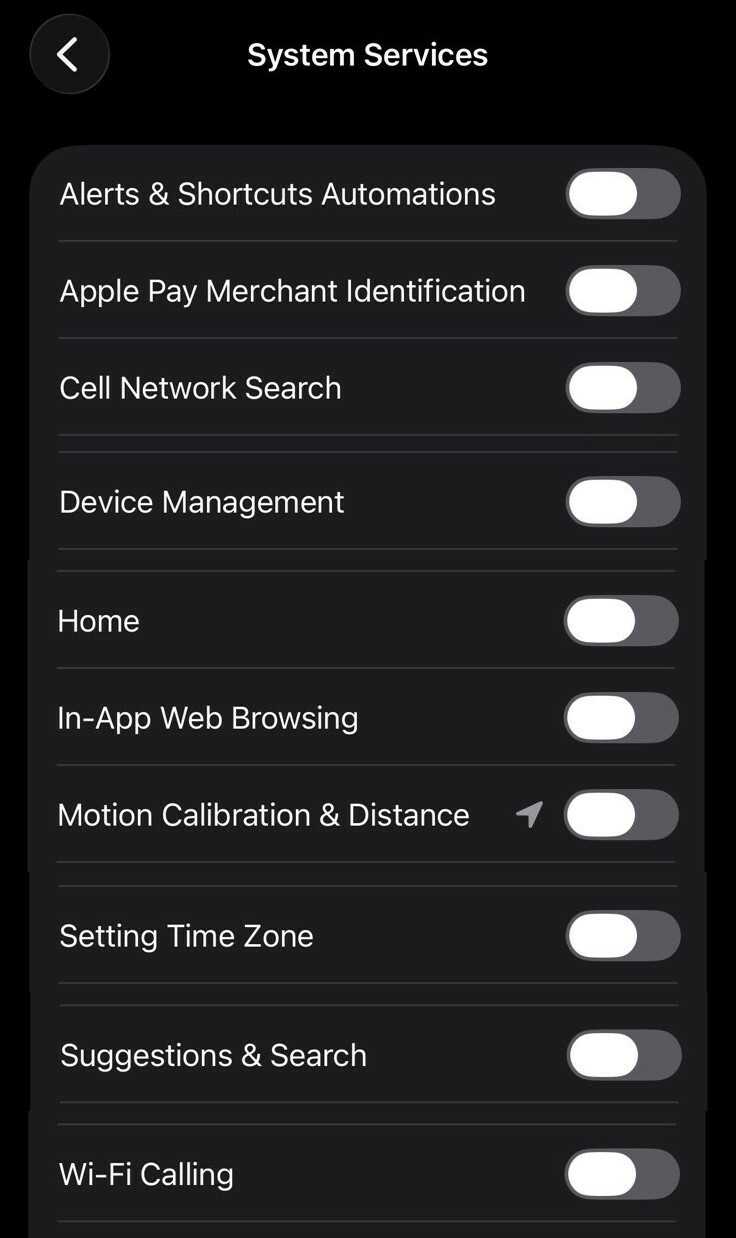
Next set is quite complex, explanation won't fit into a single post. So here is list of items I'd recommend to disable for personal iPhone. Go to Settings-> Privacy & Security-> Location Services scroll down through all the apps, at the bottom you'll see "System Services", click on it. Go through all options and adjust as you see fit, recommendation on the image. While you are there turn on "Status Bar Icon" to see when location used. #iphoneprivacy #punkprivacy
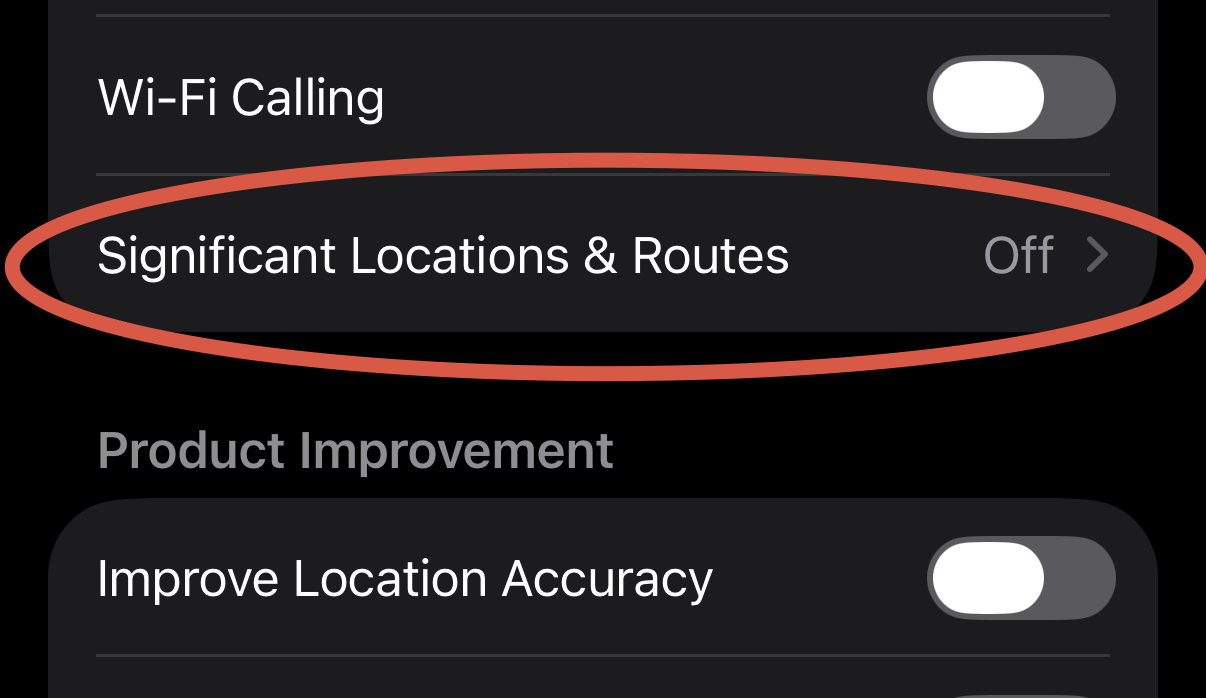
This setting might be a bit controversial, but I'll still recommend turning it off. Go to Settings-> Privacy & Security-> Location Services scroll down through all the apps, at the bottom you'll see "System Services", click on it. Scroll down to Significant Location & Routes and click on it. Then disable it and clear history. Description states that it's end to end encrypted and can't be read by Apple, but I'll still recommend turning it off anyway. #iphoneprivacy #punkprivacy
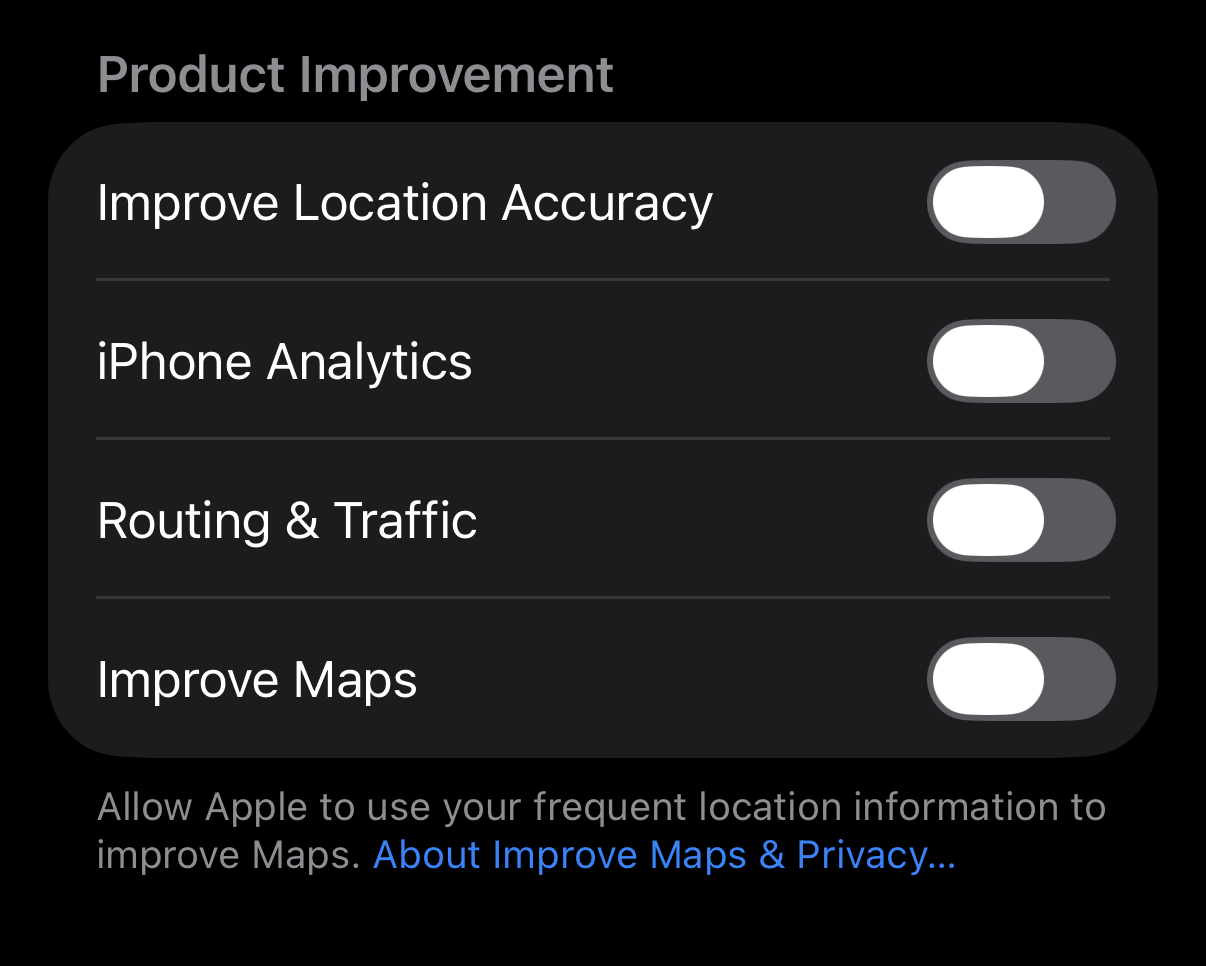
One other setting to disable in Location section - "Product Improvement", no it's not improvement for you it's simply to use your data to improve Apple systems, just disable it. Go to Settings-> Privacy & Security-> Location Services scroll down through all the apps, at the bottom you'll see "System Services", click on it. Scroll down to "Product Improvement" section and disable all settings within that section. #iphoneprivacy #punkprivacy
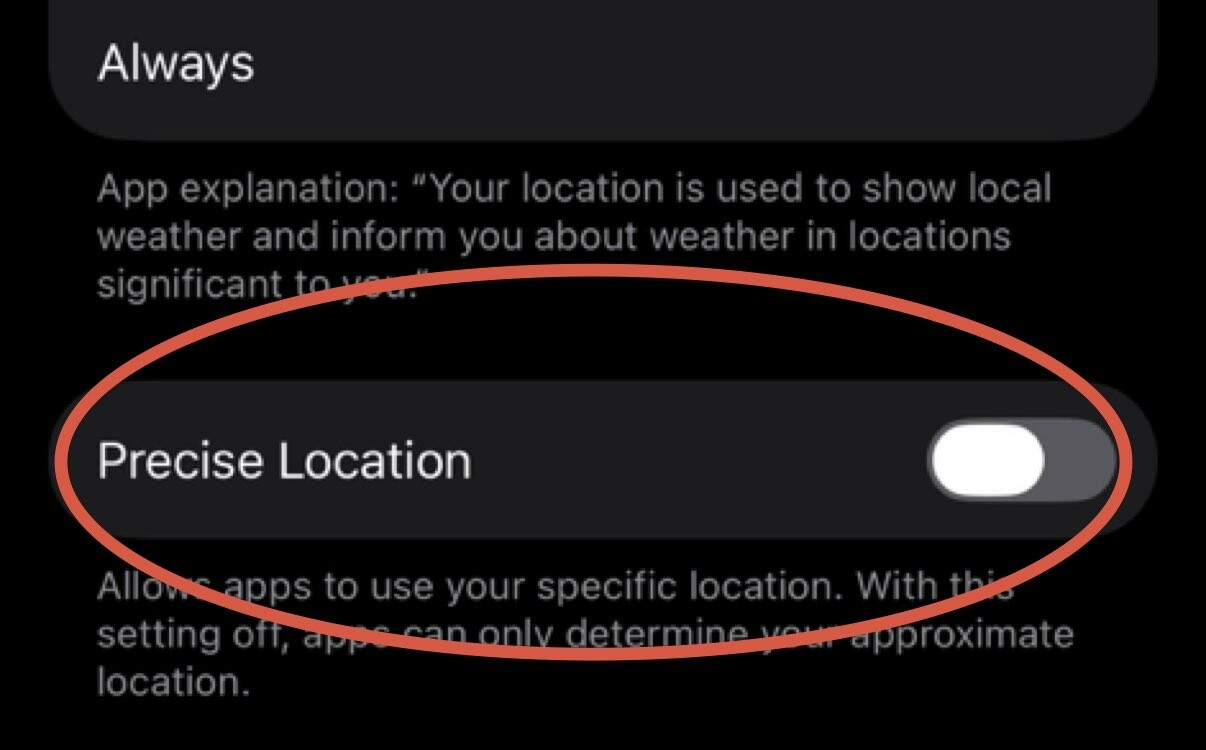
Let's talk about location precision. iPhone has a setting that controls how precise your location passed to an app. Unfortunately by default it's precise, which is a within 10 ft radius. Turning it off makes it a mile-ish radius. I am sorry, but weather does not change within a mile radius, so your weather app does not need it. Go to Settings-> Privacy & Security-> Location Services, review apps and turn off Precise Location unless it's an app that needs it. #iphoneprivacy #punkprivacy
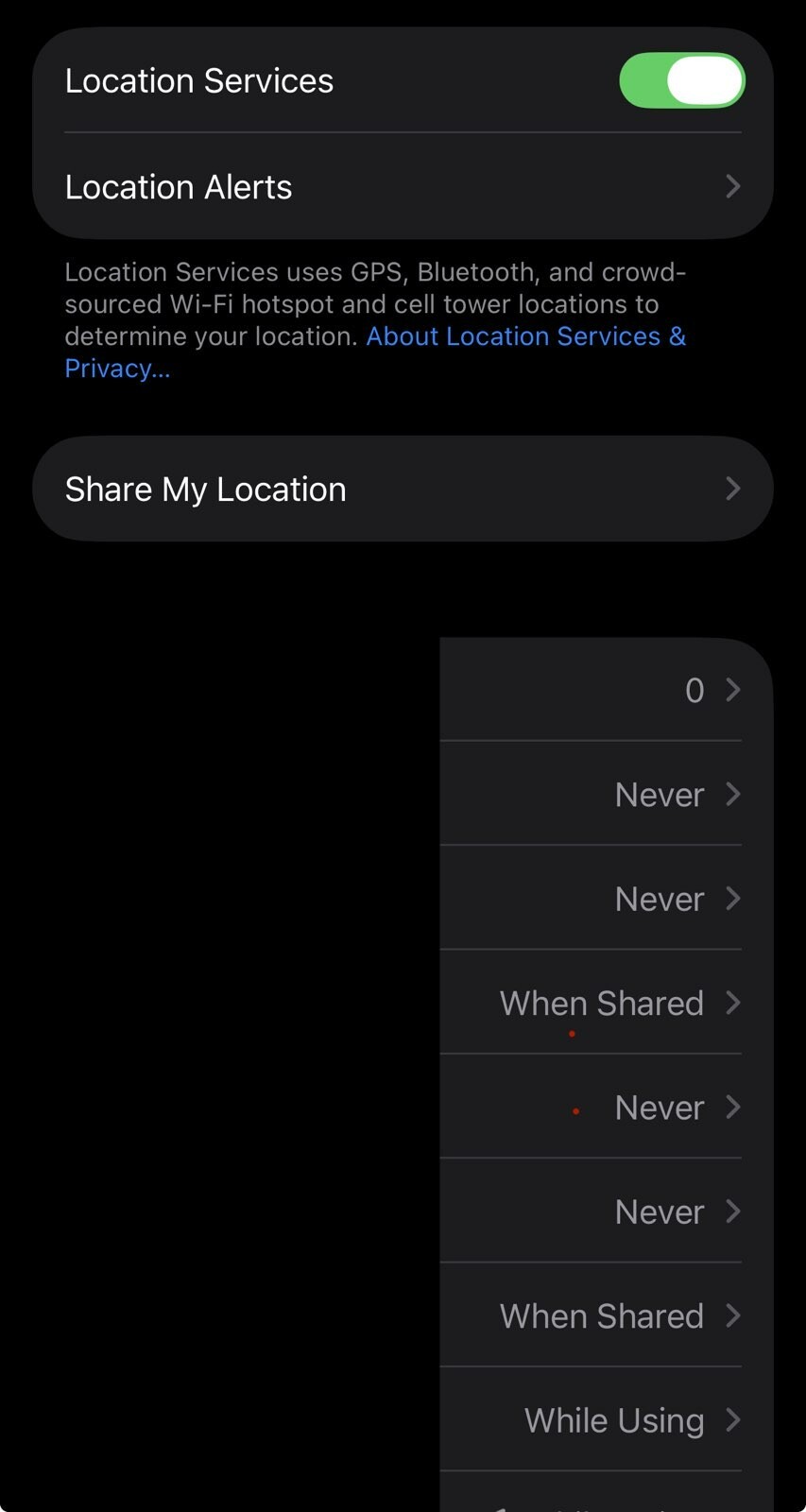
We are not done with location just yet, now we need to review apps that we are sharing location with. Go to Settings-> Privacy & Security-> Location Services and review each app. Typically you night have next options: Never, Ask Next Time or When I Share, While Using the App, Always. Many apps will attempt to convince you to switch to Always, never do that. If app requires location, maps for example, settle on While Using the App.
#iphoneprivacy #punkprivacy
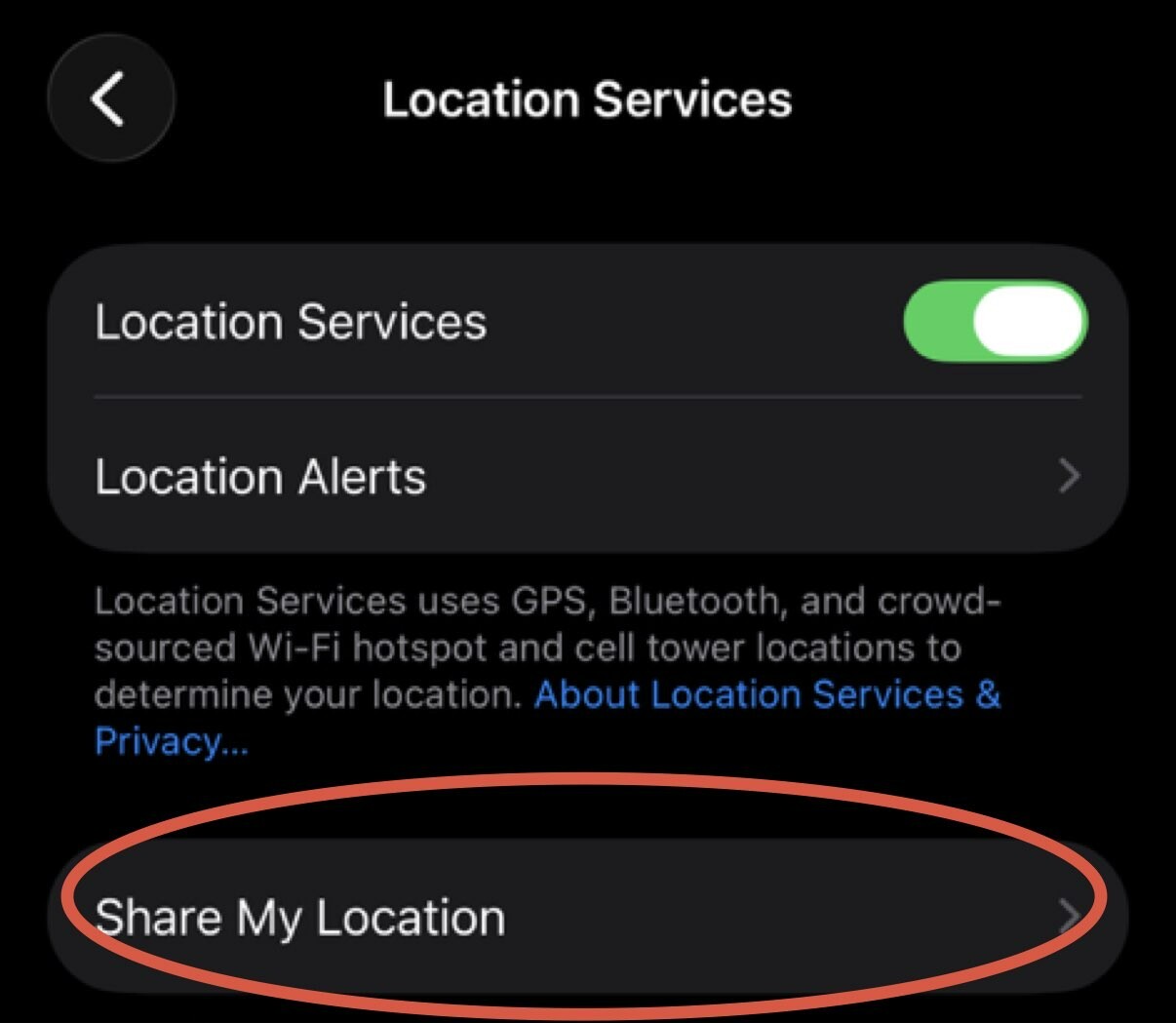
Let's start with iPhone feature to share location with your friends/family. Go to Settings-> Privacy & Security-> Location Services-> Share My Location and confirm that you intended to share it with those people. Click on individual person, scroll down and click "Stop Sharing My Location" to stop. Go through every name on the list. If you are not sharing with anyone click on "Share My Location" green checkbox to stop sharing it all together. #iphoneprivacy #punkprivacy
I have decided to start a series of posts on iPhone privacy with tips, to help people understand privacy settings on their device, learn what those settings do and how to configure them. Series can be found under #iphoneprivacy hashtag.
#punkprivacy
Sergey Shkundaleu
boosted

By me: ClickFix attacks are on the rise. By spoofing Windows crash errors, Cloudflare captcha pages, and Apple logins, all try to trick you into pasting malicious code into your computer.
ClickFix hacks affect Windows and Mac users, can skirt common security defenses, and plant malware in a flash.
In my new blog, I explain how ClickFix attacks work, what to look for (with pictures!), and how to stay safe. I also tested some ClickFix attacks myself.
Please read & share! https://this.weekinsecurity.com/clickfix-attacks-are-increasingly-devious-dangerous-and-can-get-you-hacked-in-an-instant/
I have decided to write a longer post on subject of improving privacy of your phone and how to approach it in general. Here is the link to my blog post: https://sergeysh.com/2025/12/22/Privacy-on-your-phone/
Sergey Shkundaleu
boosted



New from 404 Media: Flock exposed some of its AI-powered cameras to the internet. We know because we tracked ourselves with them. These cameras zoom in on passersby, sometimes so close we could read a random person's phone screen. Required no login to view cameras
https://www.404media.co/flock-exposed-its-ai-powered-cameras-to-the-internet-we-tracked-ourselves/
Android or iOS based phone? Both types that are commercially available are bad for privacy. To minimize number of trackers on Android side stick to Pixels and ignore everything else. On iOS side there is only one. Then depending on how tech savvy you are you can do a lot, goal is simple to make sure no company has a control over your life and you can lose relationship with that company at any moment if they pull the plug.
- WebSite
- https://sergey.iontec.co/
- GitHub
- https://github.com/sergshk
Admin
Experienced technology entrepreneur on the quest for ethics and privacy. Follow #punkprivacy tag to get regular privacy tips. You can also follow @ethiork account to get information about progress of Ethiork project that enables people to own their data and protect their privacy.
Joined Nov 2020